Android, iOS, and macOS apps: Understanding managed configurations
You can create multiple configurations for applicable Android, iOS, and macOS (PKG only) apps.
When working with devices: On the Devices tab, select one or more device(s). In the right-hand panel, open the Apps tab. Click Add. To add an existing app configuration, search for the app name to see a list of all available configurations, make a selection, then click 'Install on Device'. While searching you may notice the same app named as multiple configurations—for example, Adobe Acrobat with Default Settings and Adobe Acrobat Marketing Group Settings.
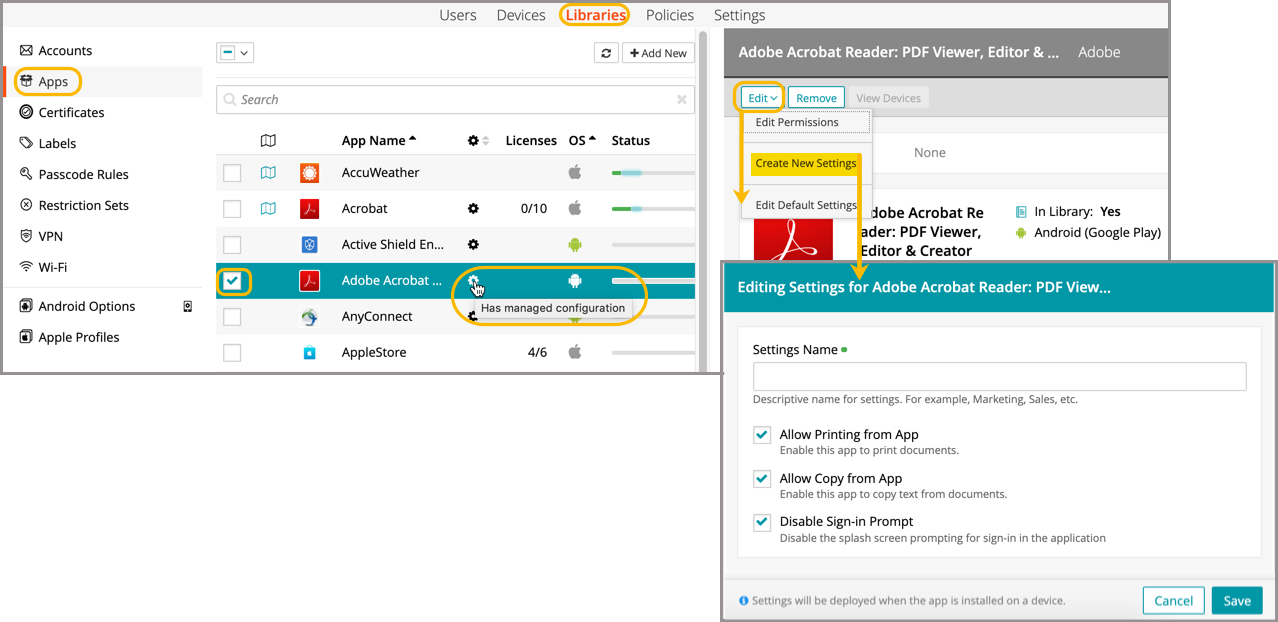
When working in the Apps Library (shown below): This feature allows administrators to create multiple configurations for individual Android and iOS apps. Once additional configurations are saved, they can be accessed in the App Library under an app’s edit function for future management.
Not all apps allow this functionality, but an administrator can determine which apps are available for multi-configuration by locating the gear icon adjacent to the app in the master list.